
Guide
Why media goes offline after a transfer, and how to catch it first.
“Media offline” on the recipient’s screen usually has a simple cause on the sender’s side. Most of them can be found before anything is sent.
How a project finds its media
An editing project doesn’t contain your footage. It stores references to files. In the Premiere Pro project files we examined, each reference records the full path the file had when it was imported, and a path relative to the project file. When the full path doesn’t exist on another computer, Premiere can try the relative one, and otherwise asks you to relink.
Common causes
- Media outside the project folder. Clips imported straight from Downloads, a camera card or another project’s folder never get copied with the project.
- Different drive names.
/Volumes/Mediaon one Mac,E:\on a PC: full paths stop matching as soon as the drive changes. - Renamed or reorganised folders. Tidying the media folder after import breaks the recorded paths.
- Cloud placeholders. Online-only files in a sync folder look present, but the real content was never downloaded.
- Capitalisation changes. A transfer to a case-sensitive volume, or a rename from
A001.movtoA001.MOV, can stop a path from resolving. - Files the transfer skipped. Names Windows refuses, very long paths or hidden files can be dropped silently by some copy tools.
- Templates stored elsewhere. Motion Graphics template media often lives in a user library, not in the project folder.
How Bundvera detects it
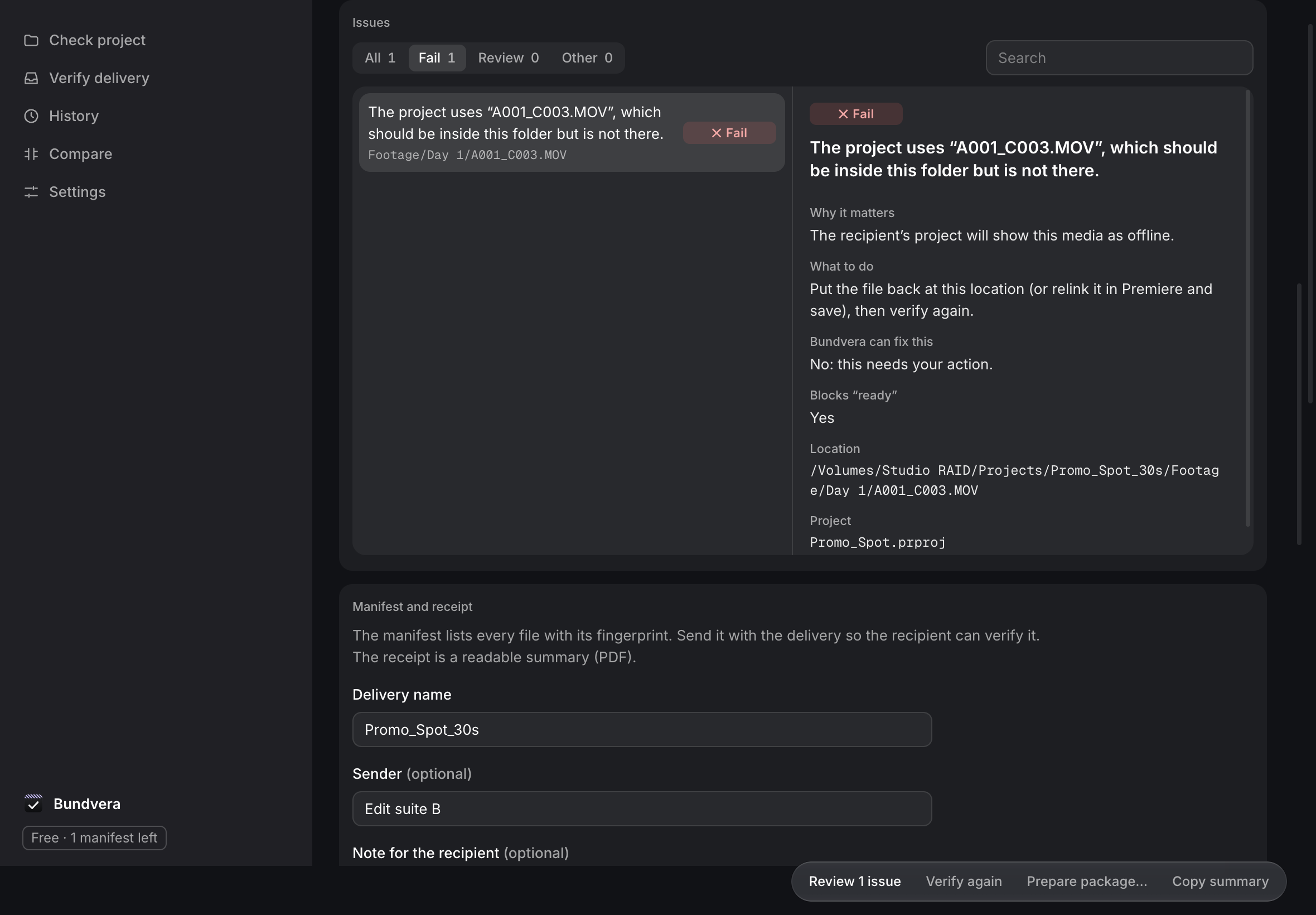
Bundvera reads each Premiere Pro project in the delivery folder (experimental, validated with Premiere Pro 2026 project files) and checks every media reference against the folder:
- references to files that exist nowhere the project expects are reported as missing;
- references to files that exist, but outside the delivery folder, are reported because they won’t be sent;
- Motion Graphics template media stored elsewhere is flagged for review;
- names that won’t survive a move between macOS and Windows are flagged too.
Quick Preflight does this without reading file contents, so it usually takes seconds. On the recipient’s side, verification against the manifest names every file that went missing in transit.
What it doesn’t detect: missing fonts, effects and plugins, broken proxy links, Dynamic Link compositions, and dependencies inside After Effects, DaVinci Resolve or Final Cut Pro projects. The result lists these as not checked.
Fixing it before you send
- Relink offline media in Premiere first.
- Copy media that lives outside the folder into it, or let Project Manager collect it.
- Make sure cloud files are fully downloaded.
- Run the check again until no media is missing or outside the folder.